
TinyBooks Pro for the Mac
Simple Macintosh Accounting for Home and Small Business


- Ultra-Simple Macintosh Accounting
- Buy it Once, Use it Every Year!
- Mileage and Bar Charting
- Accountant's Bottom Line Report
- Professional Check Printing
- Professional Invoice Printing
- (Estimates, Statements, Proposals)
- Handles Tough Tax Situations
- Handles Non-Standard Fiscal Years
- Easy Rollover to New Tax Year
New to TinyBooks Pro? Read this...
- To see how TinyBooks Pro works, check out the TinyBooks Pro Tutorial page.
- To see what others have said about TinyBooks Pro, visit the TinyBooks Pro Comments page.
- To try it yourself, download TinyBooksPro.zip, unzip it, run it, choose NEW from the File Menu, and have fun.
| Download TinyBooksPro.zip (v10.0.5) | Buy Now (Indiv. - US$ 79.) |
| TinyBooks Pro Tutorial | Your Comments | FAQ | Version History | Old TinyBooks |
| Requirements | Invoices | Check Printing | Mileage | Taxes | Support |
What is TinyBooks Pro?
TinyBooks Pro is an ultra-simple accounting and bookkeeping program designed for home and small businesses and perfect for Sole Proprietors. TinyBooks Pro requires a Macintosh running OSX 10.10.5 or later. See the Requirements section for more complete info.
TinyBooks Pro is a flexible, non-bloated, single-entry bookkeeping program and the perfect companion to help with taxes throughout and especially at the end of the year. Though designed with small businesses in mind, it can also be used in the home to help with the family finances.
Many tax-related programs, such as TurboTax and H & R Block (formerly known as TaxCut or At Home) and others, are tied to a particular tax year and must be re-purchased every single year. TinyBooks Pro is NOT tied to a particular tax year. Tax laws may change, but the need to keep track of expenses, income and profits never seems to change, and that is exactly what TinyBooks Pro is all about! The TinyBooks Pro you purchase today can be used to help you with your taxes in past years, this year, next year, and for years ahead.
TinyBooks Pro actually works on automatic most of the time. All you really have to do is enter each expense or income item, as it happens, or at month end, and the program calculates everything else, automatically and instantly.
The Accounts dialog, the Bottom Line Reports window and the Reports and Transaction Search windows allow you to create Income, Expense, Quarterly, Full-Year and Custom Reports for just about any time period. The Bottom Line reports are exactly the reports that an accountant would want. There are no parameters required for these reports, the program knows exactly how to create them. End-of-year accounting is simply effortless.
The Accounts Dialog not only instantly displays monthly and year-to-date account totals, but also displays monthly trends (instantly, graphically, intuitively and without any user intervention.) Budgets are also optionally and easily integrated into any account.
TinyBooks Pro also includes a Professional Invoice Printer utility and the invoices are printed on plain white paper, so no expensive third-party forms are required. The Professional Invoice Printer has been totally revamped. It's now easy to create a multitude of standard and custom forms, such as Invoices, Estimates, Statements, Proposals, and more.
If you require Professional Check Printing, TinyBooks Pro now handles that too. In fact, we've done the legwork so you don't have to. No more testing and experimenting with various checks to make sure things fit and line up properly. When you purchase TinyBooks Pro checks, they'll work perfectly first time and every time. Compatible checks for TinyBooks Pro can be ordered here: http://www.winograd.com/checks. You can also order TinyBooks Pro checks by phone, toll-free, at this number: 800-544-3427
All transactions and reports can be exported as desired (for instance, to give to an accountant, or for import into a spreadsheet, etc.) All transactions can be easily sorted by Date, Comment, PaymentType, Account#, Amount or Type of Transaction (expense or income.)
TinyBooks Pro also supports all kinds of domestic and international taxes, such as Sales Taxes, GST (Goods and Services Tax), PST (Provincial Sales Tax), VAT (Value-Added Tax) and more. TinyBooks Pro can even handle multiple types of taxes without adding any complexity.

TinyBooks Pro: Is It Right For You?
TinyBooks Pro is, without a doubt, an astoundingly simple-to-use accounting program. That is surely its main niche! It's written for small business owners who pretty much hate accounting and want to do as little of it as they can get away with, yet still have all the facts and figures that they need to run the business and help at tax time. TinyBooks Pro fills this need for thousands of small businesses.
But, being such a simple program, it cannot include the vast features of the "big boy" accounting programs. These other accounting programs (such as: Quicken and QuickBooks) are truly superb, but they suffer from being so overly complex that they leave most users who are not trained accountants in a daze of bewilderment. Many of these other programs are not only much more expensive than TinyBooks Pro, but often have to be re-purchased every year. Some aren't even compatible with the latest Mac OS's as TinyBooks Pro is. (It's pretty obvious that these other programs, as capable as they admittedly are, are so complex that the companies need to offer seminars and training courses on how to use the programs. Accounting consultants are often required just to get you up and running.)
So, the real question you have to ask yourself, is if the subset of accounting features that TinyBooks Pro does provide is sufficient for your business. I can't be more honest than that. That really is what it's all about. Luckily, TinyBooks Pro is distributed as shareware and you are free to try it yourself before purchasing. The program that you download is the real thing, no features are left out. It's a true test of the program. If your business is such that TinyBooks Pro can effectively handle your needs, there's not a simpler program out there. See what hundreds of others have said about TinyBooks and TinyBooks Pro. Better yet, have a look at the program itself. Try the simple TinyBooks Pro Tutorial. You'll see, step-by-step, with screen captures, exactly how easy TinyBooks Pro is to use as well as how much it can do for you.

TinyBooks Pro: Accounting Experience
Ken Winograd (the programmer of TinyBooks Pro) has a rather long history creating financial and accounting software. Long before the Macintosh even existed, Ken wrote various investment portfolio programs for the Apple II computer. These programs were used exclusively by Ken's friends and family.
Later, Ken also worked for a company called Great American Software where he created the Invoicing Module (along with various other utilities) for their very popular One Write Plus accounting software for IBM PCs. Ken also was the Lead Programmer (and then Software Engineering Manager) for the very first versions of software-based Dome Books, published by Dome Publishing of Rhode Island. At that time, the Dome accounting software supported Apple II, IBM PC, and even Commodore 64 computers.
Since 2003, Ken has designed, programmed, published and supported the popular TinyBooks and TinyBooks Pro Accounting programs, currently for the Macintosh only. The one common theme in all these years of accounting experience has been to make accounting simple and intuitive for families and small businesses around the world.

TinyBooks Pro: Theory of Operation
TinyBooks Pro works by keeping track of multiple accounts which you can customize. There are four basic types of accounts: Deductible Expenses, Non-Deductible Expenses, Taxable Income and Non-Taxable Income. For a typical small business, that's about all that's required. As you might guess, the non-deductible expenses and non-taxable income accounts are included for your bookkeeping convenience, as they are not included in profit computations. But, if you are using this program for home use, rather than as a small business, such account types are very handy indeed. Business Profit is calculated by subtracting the sum of the deductible expenses from the sum of the taxable income. With TinyBooks Pro, you never have to request a calculation, all calculations are performed instantly any time you add, delete or modify any item.

TinyBooks Pro: Requirements
Requirements: The very latest TinyBooks Pro version 10 (now a 64-bit application) requires a Macintosh running Mac OSX 10.10.5 or greater. And, yes, it works just fine with the very latest macOS releases known as Catalina (MacOS 10.15), Big Sur (MacOS 11.0), Monterey (MacOS 12.0) and Ventura (MacOS 13.0). The latest version of TinyBooks Pro is a code-signed and notarized Universal Binary application, meaning it runs natively both on Intel-based Macintoshes and the latest Apple Silicon-based Macintoshes. TinyBooks Pro also requires a screen resolution of, at least, 1280x800.
Note: For those who are still running PowerPC Macs and/or Mac OS9, the old non-Pro TinyBooks v6 can still be purchased, though it is no longer officially supported. More info on how to get the old non-Pro version of TinyBooks as well as the last version of TinyBooks Pro (v8.0.7) that runs on Mac OSX 10.6 can be found on the Old TinyBooks page.

TinyBooks Pro Tutorial
If you're interested in TinyBooks Pro (and I hope you are) why not try it for yourself? You can download TinyBooksPro.zip for free, and try it for free. What you'll download and try is indeed the real thing. No features are left out. Once you have it downloaded, you might want to try a simple, step-by-step tutorial on how to use TinyBooks Pro, including screenshots. Here's the Simple TinyBooks Pro Tutorial page. The tutorial page is fun to scroll through...take a quick look. If you are serious about learning TinyBooks Pro, spending some time on the tutorial page is time well spent.
For more complete information on many of the features of TinyBooks Pro, you definitely want to take a look at the TinyBooks Pro tutorial. Here's the TinyBooks Pro Tutorial page. But, while you're on this page, let's take a quick look at some of the various features...
A Typical Monthly Window
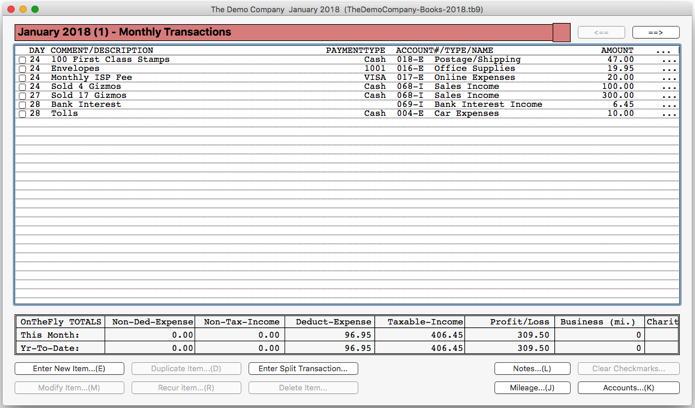
When you enter transactions (expense and income items), they appear in the Monthly Window as shown here. Note that each month can be associated with a particular (user-configurable) color. Also, every time you enter a new transaction, important totals are immediately displayed at the bottom of the window in the "OnTheFly Totals" section of the window.
Note: A click in the OnTheFly Totals area of the window will show the Checkmarks Info display with totals (for the current month and all months) of just those items that are checked. This makes checking or credit card reconciliation a snap!
Monthly Notes

Each month in a TinyBooks Pro document can have some textual Notes associated with that month. These Notes might be used to explain a transaction when the Comment field on a transaction isn't quite large enough for a full explanation. Quite often, you might also use a Note as a reminder to perform a certain task in a future month, such as checking an invoice was paid, or a check was written, or you've started work on your taxes, etc. When a Month includes a Note, a "(N)" is appended to the name of the month in the Monthly Window so you can easily tell which months have a Note when moving from month to month. [By default, all Notes are carried forward when you create a "New (with Import)" document for the next year.]
Monthly Colors
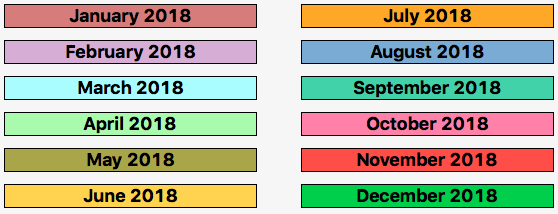
If you move around from month to month (using the arrow keys), you'll see that each month can have a user-configurable color associated with that month. You can utilize the default colors as shown here, or you can modify them as desired. You can use colors to help visually differentiate documents for different companies, or different years, etc.
Reconciliation/Reminder Checkmarks
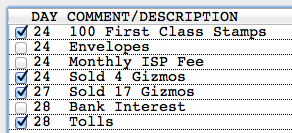
Note the checkboxes on the left side of every transaction line in the Monthly Window. These are called Checkmarks, and you can use them for whatever purpose you might like. The checkmarks might be used as placeholders to remind you of particular locations in a long list of transactions, or they might be used temporarily to help you to reconcile a credit card or checking account statement. If you click in the OnTheFly Totals area of the window, it will change to show the Checkmarks Info display. This will display the totals (for the current month and all months) of just those items that are checked. This makes checking or credit card reconciliation a snap!
The Accounts Dialog
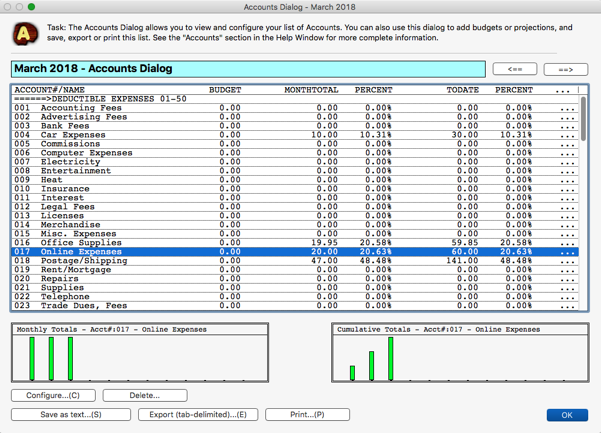
The Accounts Dialog shows you all of your accounts, and the totals for each account for the current month and the totals to date (meaning from the beginning of the year through the current month). Also displayed are the percentages that each account represents, compared to the applicable subtotal of that particular type of account. This dialog is also used to add, modify or delete accounts to suit your own business (or family) needs.
Bar Charts in the Accounts Dialog

As you move up and down the list of accounts in the Accounts dialog, the bar charts will automatically and graphically show you trends on any account. Note in this case, that we are in the month of March, the 3rd month in our year, and "Online Expenses" happens to be highlighted. It's easy to tell at a glance that our monthly online expenses have held constant...since all three green bars are the same height. But, if you look at the Cumulative chart on the right, you'll note that, cumulatively, the trend is rising, as it should, since your total expenses for the year for that account are rising.
Budgets in the Bar Charts

In the Accounts dialog, you can configure any account so that it includes a budget. A budget is just a best guess or projection that you can give an account. The budget is shown on the bar charts as blue lines. And, as always, you don't have to do anything, or set anything, or configure any settings. The bar charts and budgets are automatically, instantly calculated for you on the fly. Perusing your accounts and how your business is doing through the year has never been easier.
Reports and Transactions Search Window
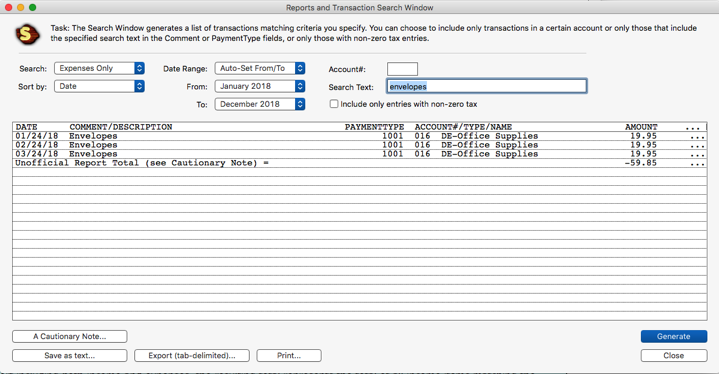
The Reports and Transactions Search window gives you the flexibility to generate just about any kind of report you can think of. The real accounting reports are available in the Bottom Line Reports and the Account dialogs. But, the Reports and Transaction Search window is a very powerful search facility. In the example shown here, I searched for any expense, at any time, that had the word "envelopes" in the item's description.
The Bottom Line Report

OK, it's the end of the year, you've entered all of your expenses and income items, and your accountant is screaming for some actual information from you. What do you send? Why, the "Bottom Line Report" of course. This is a very simple report that includes just about everything an accountant might want. At the end of the year, this is the report that I would print to help me figure out my taxes.
There's only a single parameter that needs to be set. Just specify whether you want the report to cover a particular quarter of the year, or the Full Year. At the end of the year, you'd naturally select the Full Year Report. And, that's it! The report that appears is an absolutely complete breakdown of the sum of all of your expenses, income, mileage, taxes paid in and/or out, profits, etc. This is exactly the summation of your business year that your accountant (or YOU) would need to be able to fill out your taxes.
Professional Invoice Printing
(Invoices, Estimates, Proposals, Statements, Purchase Orders, etc.)
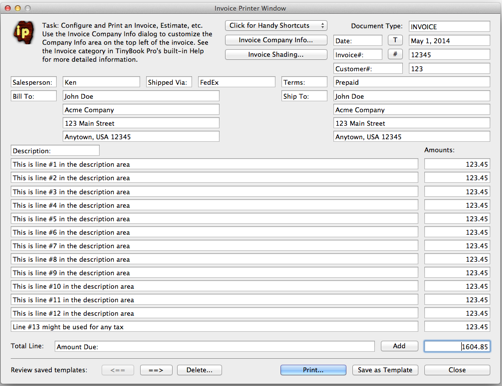
TinyBooks Pro includes a very professional invoice printer. Here, you can fill in all the various invoice fields (Date, Customer Number, Invoice Number, Bill To, Ship To, etc.) and then TinyBooks Pro will print a professional-looking Invoice, and on plain paper too, so there's no expensive custom or 3rd-party forms that need to be purchased.
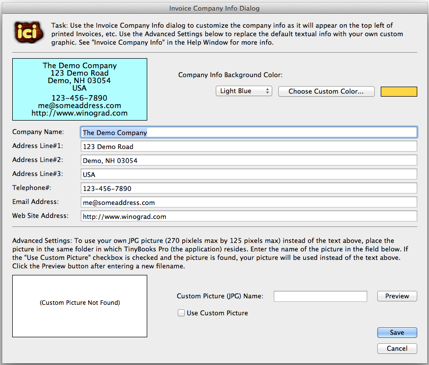
The upper left portion of a typical invoice is where your company name and details reside. To set this info, you would use the Invoice Company Info dialog. This is where you'd enter the company name, address, phone, email address, web site and more...as you would like it to appear on your invoices. (You can also colorize invoices, and choose custom pictures of your design instead of the textual info if you'd prefer.)
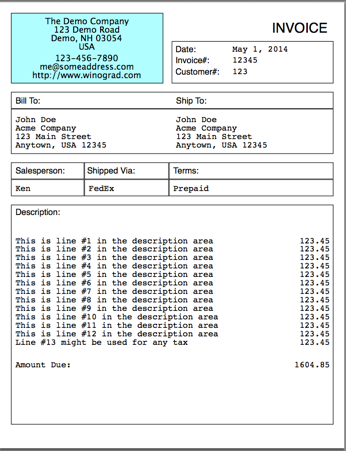
Here's a shrunken picture of what a little demo invoice might look like when printed. You'll notice that, by default, other than the blue background that I've chosen for the Company Area, the rest of the invoice is simply black text on a white background. (If printed on a non-color printer, the blue background will become a shade of gray.)
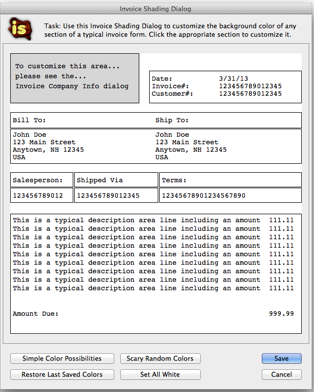
TinyBooks Pro also includes an Invoice Shading dialog. This dialog allows you to designate colors, as desired, for many different parts of a typical invoice.
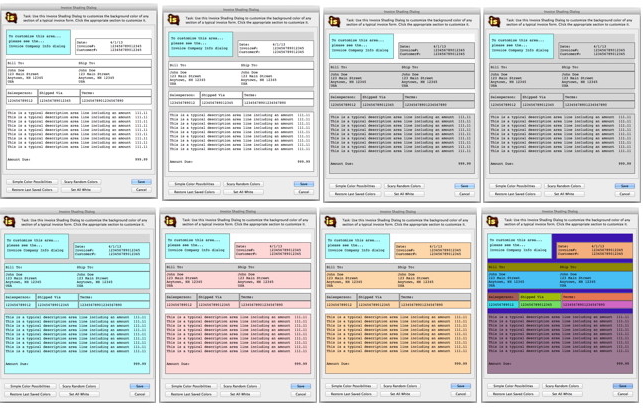
Here's a little collection of what the Invoice Shading dialog might look like after making a few colorizations. Note, by default, the typical invoice is simply black on white, but by clicking on various portions of the simulated invoice form on the dialog, you can adjust the colors.
Professional Check Printing

TinyBooks Pro also includes a very handy, professional Check Printer. Unlike the Professional Invoice Printer (shown above) which prints all sorts of forms on plain white paper, the Check Printer does require pre-purchased, customized check forms with your banking info, company name and/or logo already printed them on. It might sound complicated, but it's really not! Here's why...
I've done the legwork so you don't have to. I've made arrangements with a company that manufactures check forms, and have designed check forms that exactly match the requirements of TinyBooks Pro. When you order checks for TinyBooks Pro, they'll work first time, every time. No measuring, no experimenting, no wasted checks. This link will take you directly to the Buy TinyBooks Pro Checks page: http://www.winograd.com/checks. You can also order TinyBooks Pro checks by phone, toll-free, at this number: 800-544-3427
By the way, everyone who buys TinyBooks Pro, will automatically receive an Introductory Discount Code offering 25% Off and Free Shipping on your first order of checks and/or matching envelopes.
Mileage (or Kilometers too!)
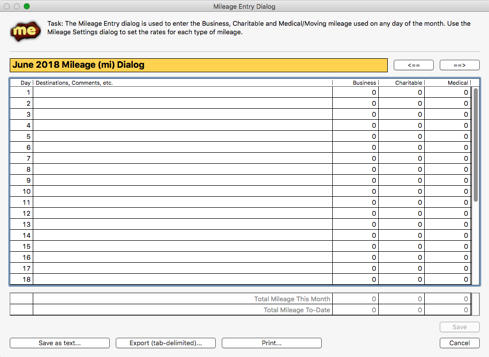
TinyBooks Pro allows you to easily enter mileage (miles or kilometers) that you've driven over the year. Note that TinyBooks Pro keeps individual track of Business, Charitable and Medical mileage, as many governments handle different types of mileage in different ways.
TinyBooks Pro includes a Mileage Settings dialog (not shown here), which allows you to customize the mileage rates for each type of mileage that TinyBooks Pro handles. The rates for all types of mileage can be changed on a monthly basis as might be required by various governments.
The Peruse TinyBooks Pro Documents Window
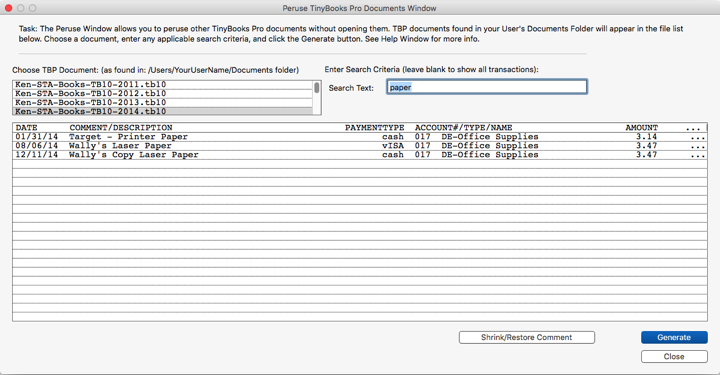
Imagine this: Your printer ran out of paper, and you remember getting a great deal on printer paper when you last bought it. So, you search your current document in TinyBooks Pro and find nothing. Why? This is probably because it's very likely you purchased the pack of paper in a previous year. And, that year is NOT easily searchable, unless you close the currently open document and then find and open the past year's document and check that. Then, finding the answer, you have to re-open your current document. That's a bit of a drag. But, not anymore.
Now, the always-open Peruse Window can answer all such questions in no time at all. All of your TinyBooks Pro documents are easily selectable and searchable with just a few clicks. It's simple, and easy. When did I buy that toner? Where did I get it from? Did I buy it from Amazon or eBay? How long have I had my printer? I wonder if the 3-year warranty expired? Did I pay for that printer with a check or a VISA card? The answers to these kinds of questions are now easier than ever to find.

TinyBooks Pro and Taxes
TinyBooks Pro supports taxes of all kinds, for virtually all countries. It supports Sales Tax, GST (Goods and Services Tax), VAT (Value Added Tax), PST (Provincial Sales Tax) and more.
TinyBooks Pro allows you to enter, if needed, two different types of taxes on every single transaction...known, for now, as Tax#1 and Tax#2. When you enter a new income or expense item, you will note that the dialog includes two tax fields. It's up to you how you want to define these two fields. If taxes are not a concern for you, you can, of course, completely ignore these fields. But, if you are faced with Sales Taxes, or GST, PST (or whatever), you can use these two tax fields to account for taxes taken in and taxes paid out.
The names of the taxes and actual tax rates applicable to your company can be customized using the Company and Tax Information Dialog, described above, and available in the TinyBooks Pro Utility Menu.
If the transaction you are entering is an Expense, any tax information you enter is considered as a tax that is paid out. If the transaction you are entering is an Income item, any tax information you enter is considered as a tax that you have received.
At the end of the list of the Accounts in the Accounts dialog, TinyBooks Pro will automatically tally for you on a monthly and year-to-date basis the total taxes taken in and total taxes paid out, for both types of taxes.
Depending on your circumstances and the country, state and/or province in which you live, you might want to use the Tax#1 field for Sales Tax, and ignore the Tax#2 field. Or, you might want to record GST for Tax#1 and PST for Tax#2. Whatever your needs, TinyBooks Pro is flexible enough to handle it.
TinyBooks Pro also includes a handy Calculate Tax button in the Enter Transaction dialog. This Calculate Tax button can be configured to calculate the tax as appropriate for your situation. In some cases (such as with USA State Sales Tax), taxes will be added to the item Amount that you specify. In other cases, such as is usual in countries that have a GST, TinyBooks Pro can "extract" the applicable taxes from the Amount entered (and then reduce the amount as appropriate.)
Note: In the Utility Menu of TinyBooks Pro, there is a menu item called "Show/Hide Tax Fields". If the Main Monthly window or the Reports window is frontmost, you can use this menu item to show or hide the two tax fields associated with every expense or income item. In fact, when you choose to show the tax fields, TinyBooks Pro temporarily makes room for the tax fields by truncating the Comment/Description field. This is for display purposes only. The Comment is not actually truncated. If the monthly items or reported items are saved, printed or exported, all fields are included in their entirety. (This option is for those with smaller monitor display resolutions. All fields are easily displayable on monitors with high resolutions.)
TinyBooks Pro Support
All orders for TinyBooks Pro (and my other programs) are handled by a company called MyCommerce.com. If you ever have any problem with an order, a registration, a payment, or anything of that nature, please visit the Customer Care Center.
If you're having any kind of technical problem with TinyBooks Pro itself, I'd be glad to help. But, before emailing me, please save us both some time by first following these steps...
- Quit TinyBooks Pro and start it again. Did this fix your problem?
- Shut down and restart your Mac. Did this fix the problem?
- Did you check the TinyBooks Pro FAQ? (Your question may already be answered.)
- Are you using the latest version of TinyBooks Pro? (The problem may already be fixed!)
- Did you try the "RESTORE DEFAULT WINDOW POSITIONS" menu item in the UTILITY MENU? For reasons unknown (changing monitor resolutions, switching between different monitors), a TinyBooks Pro window might be positioned where you can't see it. To try this fix, just open up your TinyBooks Pro document and before doing anything else, choose the RESTORE DEFAULT WINDOW POSITIONS menu item, and your problem might be fixed!
If you still need to email me after checking the above, my current email address is listed at the bottom of this page. If you email me, please always include the following info...
I'm always glad to help if I can. My current email address is listed at the bottom of this page. If you email, please always include the following info...
- The name of the program you have a question about (eg TinyBooks Pro)
- The version of the program you are using? (eg v10.0.2)
- The Mac Operating System you are using? (eg OSX 10.14.3)
- Exactly what the problem is that you see
- The steps you've already taken to fix the problem on your own
CHECK YOUR SPAM FOLDER: I usually am VERY good in responding quickly to emails...often within minutes or hours; worst case, within a day. If you don't receive a response from me, please check your spam folder.

See What Everyone Says About TinyBooks Pro...
Note from the Author: Here are just a few dozen of the hundreds of comments I've received about TinyBooks and TinyBooks Pro. See the TinyBooks Pro Comments Page to see all the comments I've received. Newly added comments appear at the bottom of the list.
- "You are very patient with us tech queens."
- "I have been using your Tiny Books Pro V10 for my dance business for years and I like the ease and simplicity."
- "Can you tell me how to proceed so I can get my beloved Tinybooks back up and running?"
- "Ken, you are just the BEST."
- "THANK YOU SO MUCH!!!!!!!!!! Problem solved in a second. I am blown away by your quick and kind response. I wish all businesses treated their customers with respect, the way you do. I’m over the moon about you and Tiny Books."
- "I like tiny books, it works, and it’s simple to use. A long time ago l had mac money and liked that. TB is like that 'user friendly'"
- "Thank you again for saving my sanity"
- "Please bless Ken. He is a saint."
- "You’re the BEST!! Thank you again"
- "Thanks for the tip! I’m going to try all the tricks you’ve given me. Thank you for taking the time to respond. Wish you lived next door"
- "That definitely helps, Ken! I've set my preferences for sorting, and come January, 2023, I'll be set. Thanks for your prompt reply and guidance."
- "I love the TinyBooks. I'm buying it now."
- "I really love your program!"
- "Right on Ken, thanks for the quick and helpful response! I'm glad to see you are still updating the software, which I have used for years and direct friends to use when possible."
- "Thanks again for the help and support. TinyBooks has served me well since 2014!!"
- "Aha! That was the magic (and yes, right under my nose). Thank you so much for the hand hold."
- "I love this program thank you so much for creating it."
- "I am clearly a tech dummy and apologize for taking up your time, but am very grateful for your patient help."
- "Anyway, I just say a million thanks for making my life a little easier with TBP10. I hope it will continue to work for years to come. I also hope that as you slip more fully into retirement, you are enjoying life, staying healthy, and keeping busy with fun and interesting things."
- "I have been using your wonderful Tiny Books program since 2013. Thank you so much."
- "Your Tiny Books program has been an absolute godsend for me all these years."
- "Thank you so much, Ken. What a joy to be able to download TinyBooks Pro again. Very generous! HAve a great evening!"
- "I recommend TinyBooks to all my Mac friends."
- "As always, you are quite amazing. Thanks so much for your quick reply. Where else in our "modern, ultra-technical world" can we have the best of both worlds? Tiny Books is user friendly and comes with personalized help from the creator, himself. Pretty fabulous, I must say!!"
- "First I would like to thank you for the wonderful accounting software you have created. I have used it for years."
- "I've been using Tiny Books since 2015. It was exactly what I wanted for our small consulting business."
- "thank you so much for a great program I can understand and use with ease!"
- "omg thank you so much!"
- "I have been using your Tinybooks program for many years. It works so well for my small import business."
- "I’ve been using Tiny Books happily since 2012."
- "Panic over. I downloaded the app again and it’s working now. Thanks again for this program. I’m not tech minded (or good at books) but can just about cope with this!"
- "It is a great program for us small business owners who do not need a double entry system. I started using it when my husband was farming over 4000 acres by himself. Since he retired, I continue to use it for our farm properties, a commercial building, a cabin in TN, and a house we rent. It’s perfect for my needs."
- "Thank you for all your input and support. I have always appreciated the fact that every time I approach you with a problem you always respond promptly and helpfully."
- "dedicated tiny books fan/user"
- "I have been using TinybooksProV10 for several years. (love it)"
- "Thank you for your time and wonderful app."
- "Yes! You have been really helpful. Thank you"
- "Thanks so much for helping me troubleshoot this."
- "I’ve happily used TinyBooks Pro for many years for our small business."
- "Brilliant!! Thank you so much. I always recommend the software. Phenomenal support."
- "Looking forward to using your program for our accounting needs!"
- "Thank you again for this wonderful program! "
- "By the way, I have been using this program since 2013 and it works quite well for somebody who knows nothing about spread sheets. Please help a fellow retiree to continue operating my business with your software."
- "So you made my day – thank you for being so on the ball, even in retirement!"
- "Ken! You da man! Thank you so much."
- "Thank you again, Ken. I have learned over the years that it is rarely / never a TB problem. You have created something beautiful "
- "Hi Ken, and thank you for Tiny Books. I used it for the duration of nearly 10 years for my gallery, and recently, we closed the business to have, well, a deeper level of retirement!"
- "I am a TinyBooks user for what must be decades now and I am somehow managing to keep using it despite so many Mac OS changes."
- "Thank You Ken, deeply appreciated. Your program has been a real life saver."
- "Wow!! Thank you so much!! You’re a life-saver!! Or at least a sanity-saver!!"
- "I do LOVE my Tiny Books and would be lost without it."
If you use and enjoy TinyBooks Pro, please use the Twitter button just below to alert your followers to this web page. THANK YOU! (Don't worry, it's not automatic, you can approve or edit the suggested tweet as you wish before sending it.)
Last Modified: March 31, 2026

Copyright ©2026 by Ken Winograd
Email: kenbiz [at] winograd [dot] com
Web: https://www.winograd.com
Twitter: @KenWinograd, @TinyBooksPro